Now you can try it yourself! Diane is available for iPhone and iOS! Coded entirely by ChatGPT
 Micke Kring
·
·
5 min read
Micke Kring
·
·
5 min read
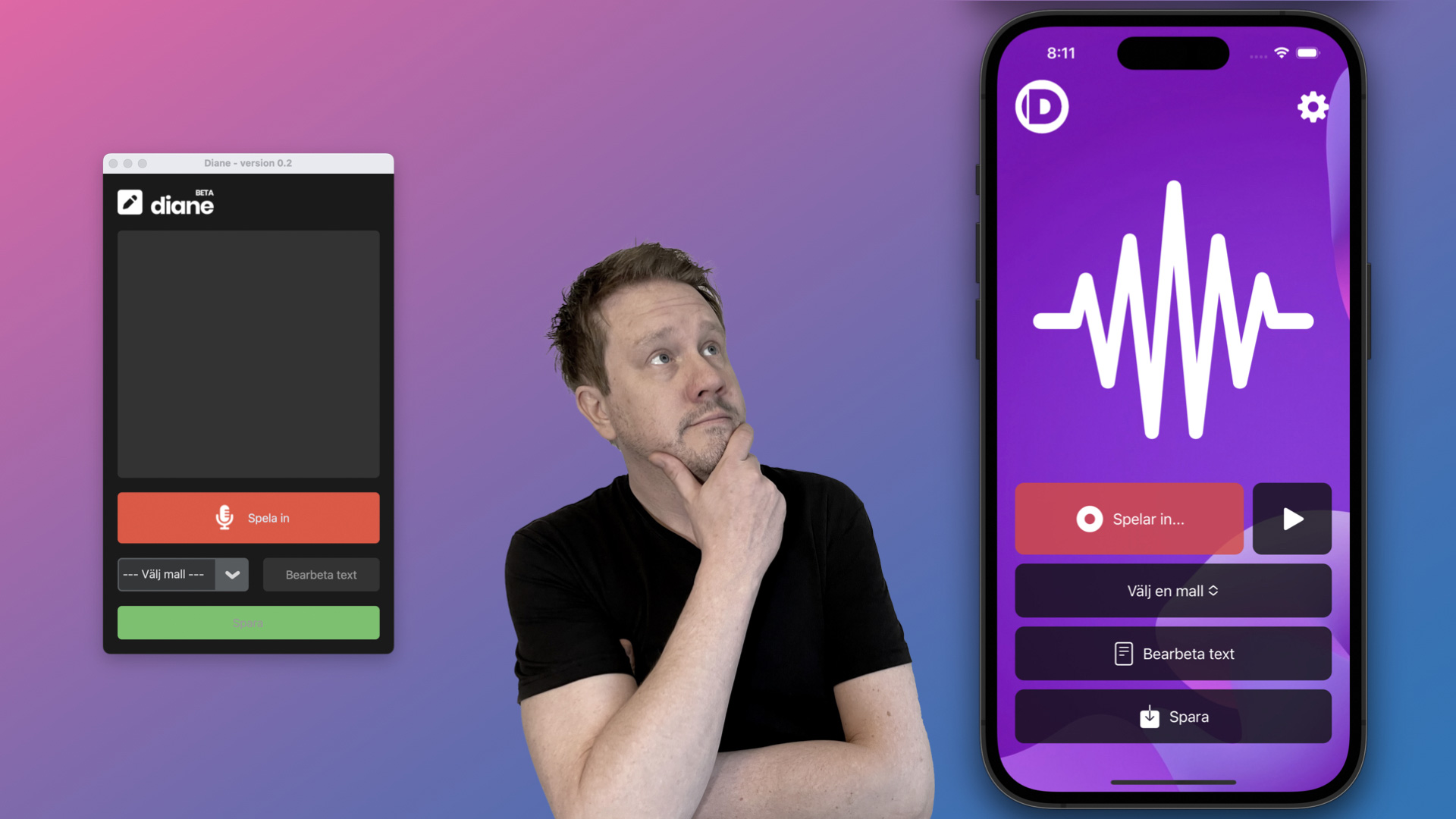
It’s time! Diane is now available to test on iOS — that is, iPhone, iPad and on Macs with M1 and M2. The app is primarily built for iPhone, so the user interface on other devices leaves something to be desired. All you need is an API key from OpenAI to get started with this nearly 100% ChatGPT-coded app.
Interest in testing Diane has been high, but I also know that many of you felt the threshold for testing the first version I wrote in Python was too high. Hence the idea that ChatGPT could actually convert my prototype into a finished iOS app was born. Since I can’t code in Swift myself, the language for iOS, I had to rely completely on ChatGPT. How that collaboration between analog and artificial intelligence went will be covered in a later article. You’re here to test Diane.
What is Diane?
Diane is an app that stitches a couple of AI services together into a flow. You tap “Record” to record your voice or a meeting. Then you choose a template, for example “General meeting” and tap “Process text”. Your voice recording is sent to Whisper, OpenAI’s transcription service, and that text is then sent to GPT-3.5 (which ChatGPT is based on, also from OpenAI) for processing. The processed text comes back to the app and you can then choose to save it, copy it, or send it to another app.
1. Download Diane
Diane is currently in the testing phase, so it’s not in the App Store; it’s tested via Apple’s Testflight. Click the link below and you’ll be taken to a page where you can (Step 1) download Testflight from the App Store. When that’s done, install the app from Testflight. If you can’t find it, go back to the link and click (Step 2) “Start testing”, and Diane will be downloaded to your device. https://testflight.apple.com/join/zSpWn6S0
2. API key? OpenAI?
To use OpenAI’s AI services, you need an API key. If you already have an OpenAI account (for example if you use ChatGPT) you can go directly to https://platform.openai.com and create a key. If you want a step-by-step guide you can find one here howtogeek.com/885918/how-to-get-an-openai-api-key
Note! If you’ve had an OpenAI API key for more than 3 months but don’t have a payment card registered, it won’t work. You must register your payment card. When you’ve created your API key (Secret Key) it should look like this (but with your key)  Note that it costs to use OpenAI’s services. You only pay for how much you use the services and you can set monthly limits for how much you want to pay. I ended up paying up to $15 while building this app.
3. How does the app work?
Now that you’ve downloaded the app and opened it, tap the icon that looks like a gear in the top right, enter / paste your OpenAI API key and tap “Save”.
GDPR / Schrems
Remember that voice is also personal data, so keep that in mind when you use the app. And don’t record any company secrets. :) As described earlier, the app sends what you’ve recorded for transcription to OpenAI, which has its servers in the USA. The same applies to GPT-3.5.
Help make the app better
- Please report any oddities or opportunities for improvement, and I’ll see what I (or ChatGPT) can do about it.
- Let me know if you’d like to see more templates, and how those could look.
- In the future there will also be an option to choose between GPT-3.5 and GPT-4. Right now it’s GPT-3.5, because not everyone has access to GPT-4 via the API.
- I’ll also try to reduce the size of the recorded audio. Whisper has a size limit of 25 MB, so if the audio file is larger than that it won’t work.
Support and questions
Get in touch if you have any questions. I have limited time, but I’ll of course do what I can to help.
Changelog
These are things that have been fixed or added to the app since I released it. Version 1.0 (15)
- Minor bug fixes
Version 1.0 (14)
- General fix of prompts for the templates
Version 1.0 (13)
- Clumsy-function — Warns before you start a new recording so you don’t accidentally start a new recording and lose the previous one
Version 1.0 (12)
- New template - “Write article”
Version 1.0 (11)
- Streaming of text from GTP. Instead of waiting until the text is finished from GPT, the text is streamed to your phone word by word
- The API key in settings is removed when you want to edit it. This is so the key is not visible to others
Version 1.0 (10)
- Now you can set whether you want to use GPT-3 or GPT-4 in settings
- Updated prompts in the templates
Version 1.0 (9)
- Disabled low-power mode while recording is active. The problem was that when your phone went into low-power mode, the recording stopped. This is now fixed
Version 1.0 (8)
- The recording audio quality has been lowered so that the audio file you record is smaller. It takes less time to send it to Whisper and you can also make longer recordings
Version 1.0 (7)
- Improved error message from OpenAI
Version 1.0 (6)
- Error message is shown if there’s a problem with your OpenAI API key
Version 1.0 (5)
- Turned down the “creativity” on GTP-3 so responses don’t become too “artistic”. Temperature is now set to 0.5
- Removed formatting in the templates for Obsidian, which was a remnant from my prototype