Set up your own encrypted Jitsi server in Sweden for video meetings in 5 minutes
 Micke Kring
·
·
4 min read
Micke Kring
·
·
4 min read
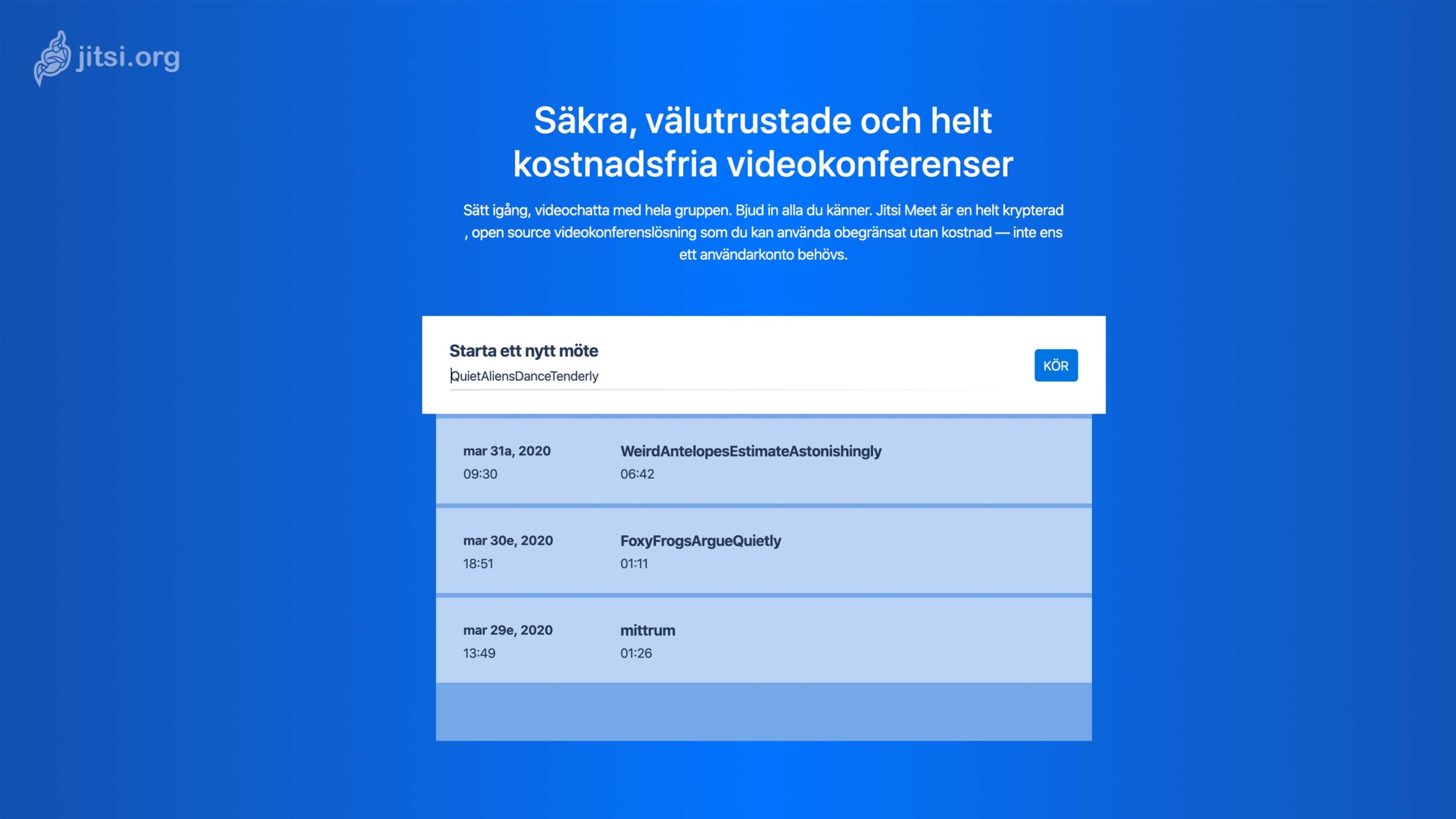
If your organization doesn’t have a video-meeting service or if you’re looking for a backup to your existing service (which may become overloaded these days), take a look at Jitsi Meet — it’s free, open source, and you can run it on your own server with data hosted in Sweden. In this guide I show how to set this up in at most 5 minutes using the GleSYS one-click installer and how to add login to the service.
- First, I should add that I am in no way sponsored by GleSYS. It just so happens that I’ve been using their services for many years and noticed the option in their control panel.
- Second, a big thanks to Peter Krantz, who took the time to help me debug when my own skills ran out trying to get authentication working.
- Third, if you don’t want to install anything or run your own server at all, you can use Jitsi freely at meet.jit.si. Then you don’t have to fiddle with it yourself.
Preparation
Of course you can download and follow the instructions on Jitsi’s site to set this up on any server. But in this mini-guide it’s about running the GleSYS one-click installer. What you need is a domain with DNS pointed to your account on GleSYS. The smallest server you can set up is 2 CPU, 2 GB RAM and 10 GB HDD with 100 mbit speed for 200 kronor per month.
Installation
In the video below I show the entire process from start to finish, which results in a subdomain for your Jitsi Meet — in my case jitsimeet.arstaskolan.se — that requires login to create meeting rooms, but does not require login for your guests. They only need a link to the meeting. Below the video there is documentation about what happens in the video.
- Create your Jitsi Meet server in the GleSYS control panel. Fill in all details and after about 3 minutes your server will be ready and configured to run meetings. However, it’s completely open for anyone to create meeting rooms. If that’s what you want, you can stop reading here and close the video after 1 minute. :)
- SSH into your jitsi server with the username and password you specified
- sudo su - | Become superuser
- Make sure you’re in the root directory
- cd docker-jitsi-meet | open the docker folder
- nano .env | here you can edit our configuration
- scroll to the bottom and add ENABLE_AUTH=1 ENABLE_GUESTS=1 AUTH_TYPE=internal
- Save the settings with ctrl + x followed by y
- cd .. | go back
- rm - rf .jitsi-meet-cfg | deletes the old config folder
- cd docker-jitsi-meet | open the docker folder
- docker-compose stop
- docker-compose up -d | creates a new config folder
- docker-compose exec prosody /bin/bash
- prosodyctl –config /config/prosody.cfg.lua register MickeKring meet.jitsi PassWord123 | Creates an account with username MickeKring and password PassWord123. Note that when you run this command you will not get any feedback that the account has been created.
- If you want to create more accounts, just repeat step 15. Otherwise you’re done. Go to your Jitsi Meet site, refresh the page and start a meeting. You will now need to check the box that appears indicating you are the host (depending on language it may say “host” or “värd”) and then log in.
How does Jitsi work?
If you want to know a bit more about how the Jitsi service works, check out Jocke Jardenberg’s video.
Read more
- Jitsi Meet in the GleSYS cloud - how it’s configured | glesys.se/kb/artikel/jitsi-meet-in-glesys-cloud
- Docker Jitsi Meet - GitHub | github.com/jitsi/docker-jitsi-meet
- Jitsi Meet - run free meetings on their servers | meet.jit.si
Questions?
If you have questions about this, as usual feel free to ask them on any social media, or here in the comments.