Set up your own e-library at school like Bibblis and Bookis
 Micke Kring
·
·
8 min read
Micke Kring
·
·
8 min read
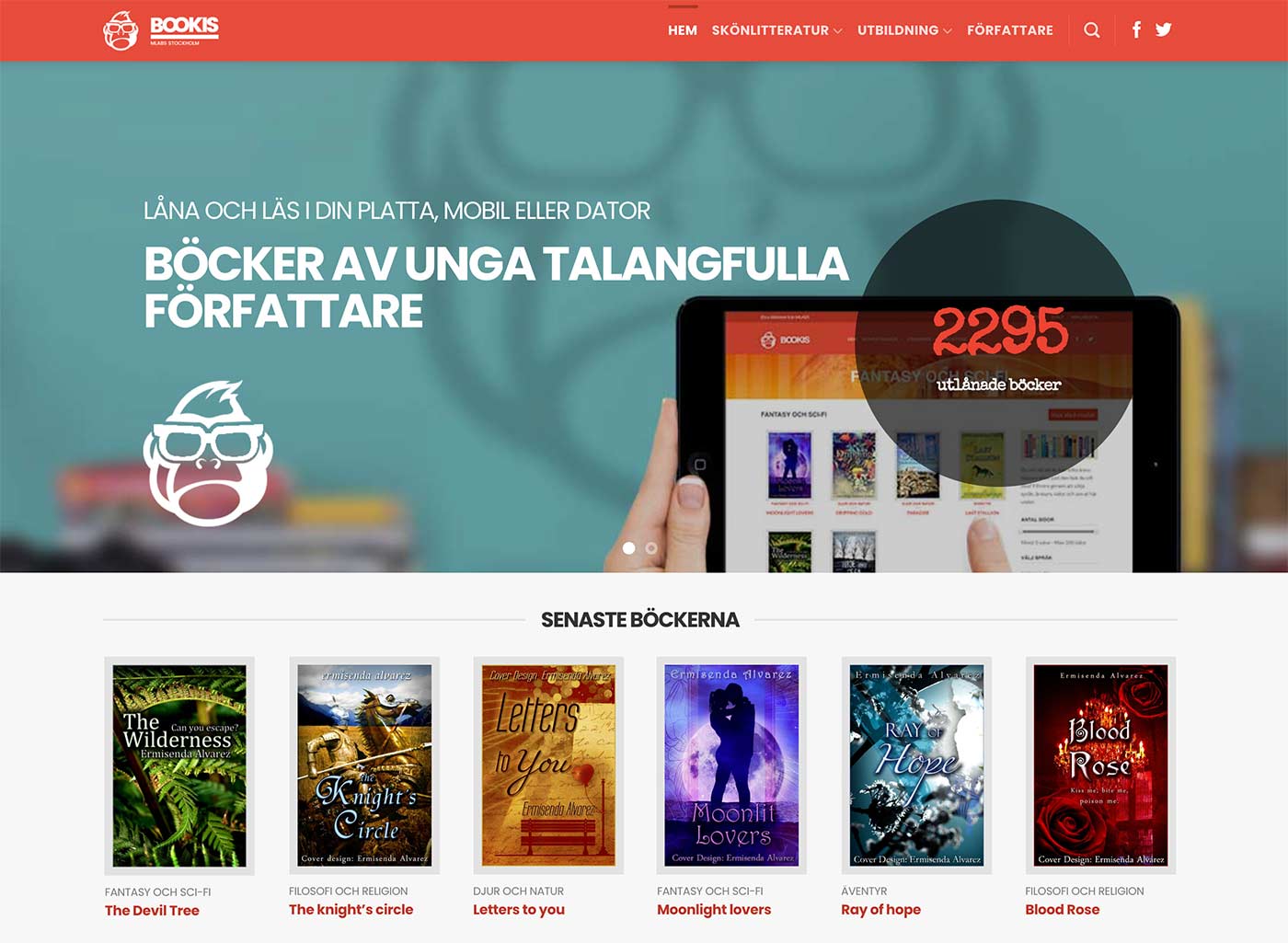
If you want to set up your own e-library for your students, like Årstaskolan’s Bibblis or mLabs Bookis (which is being shut down at the end of the year), here’s a small guide. There are of course many ways to do this, but this is how I built these two sites. It won’t cost you a lot of money, apart from your time. When you’re done, you’ll be ready to upload your students’ books in different formats and let others borrow them.
The background to the question of why you should have your own e-library comes from Bibblis at Årstaskolan, which I built and released back in 2012. It was a collaboration between a couple of teachers and me — together with the new possibilities of digitization we saw students create fantastic multimodal books. Text, audio, images and sometimes video. The students worked on their books in longer projects and it was natural to spread them. Today, about nine years later, books are still being released on Bibblis and they have hundreds of thousands of downloads.
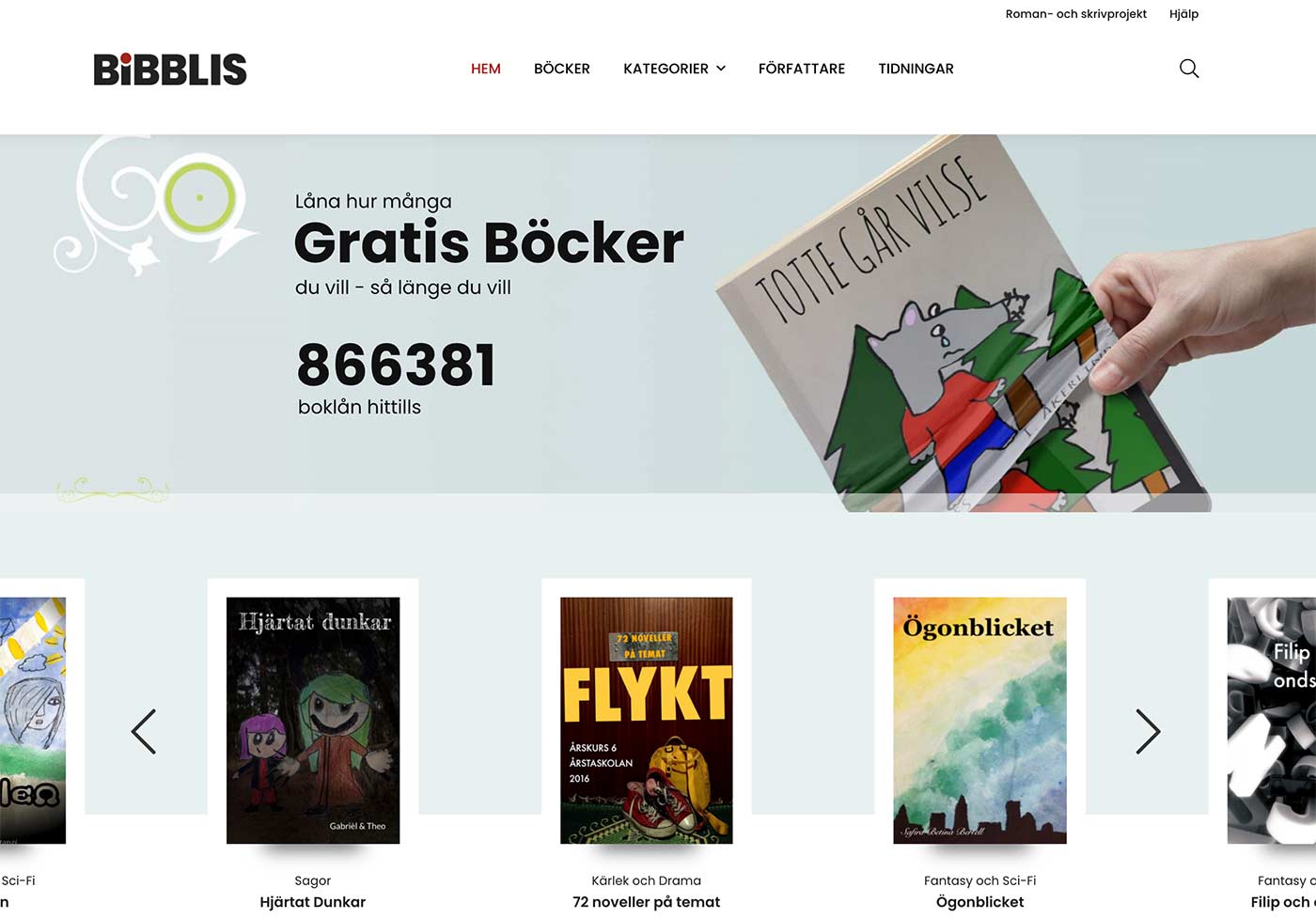 Bibblis, Årstaskolan’s e-library[/caption]
Prerequisites
Basic knowledge of how to set up a WordPress site and familiarity with WordPress.
Domain name and server location
The first thing you need is a server or web hosting to run your WordPress site on. It’s worth thinking about choosing a server location/web host that stores your information on servers in Sweden or another country that is OK regarding GDPR and Schrems II. You will be storing personal data here, even if not sensitive (I hope). A tip is to talk to your IT department at the municipal level that your school belongs to. There’s a good chance they already have web servers and could host this for you. If you don’t run your own web server, keep in mind that you need to be able to upload large files. If books are filled with images and audio or video, file sizes can balloon. We have books up to 200–300 MB. Also make sure it’s possible to upload larger files without the web server timing out. If you choose a web host, talk to them first to make sure this is possible. You’ll also want a domain name (for example bibblis.se or similar).
Price: WordPress is free, so the costs are hosting — from a few hundred SEK per month up to whatever — and a domain name which is around 200 SEK per year.
1. Install WordPress
Now that you have your domain name and hosting, just set up and install WordPress and secure the installation. You already know how to do this, so we’ll move on. I set up my installation on the domain bok.mickekring.se with the site name “E-boken,” which I will refer to. 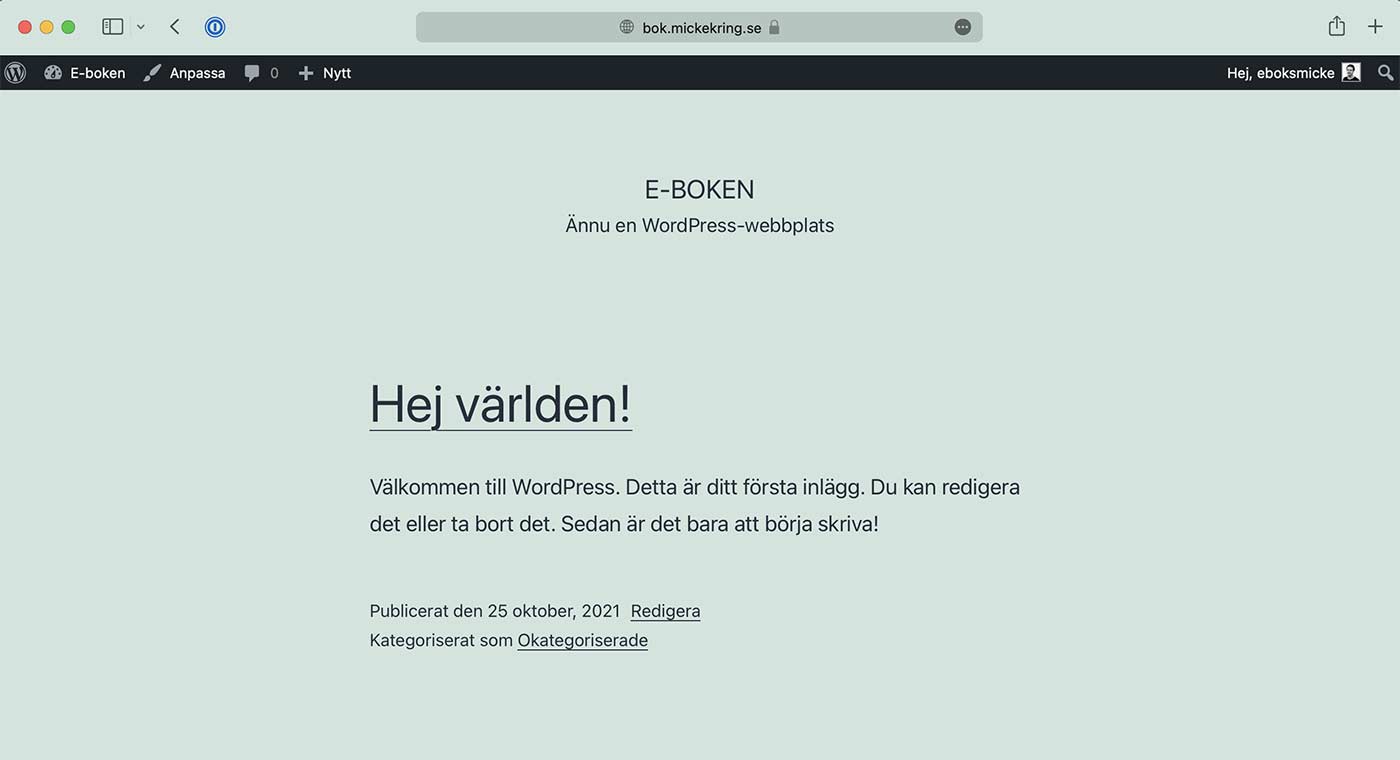
2. Install plugins
Now just get started and install the following plugins.
Plugins for the library
WooCommerce | System for e-commerce. We’re actually setting up a web shop, but with free downloads of books without visitors having to log in.
Price: Free
Free Downloads WooCommerce | Modifies WooCommerce so that products (in our case books) can be downloaded for free without logging in.
Price: Free
Book Previewer for WooCommerce | Makes the product image look like a book when you hover the mouse over the image.
Price: Free
Easy Auto SKU Generator for WooCommerce | Creates automatic SKU codes, which don’t serve any function other than making things look a bit more “official.”
Price: Free
YITH Brands Add-On | In this plugin you can create brands and attach them to products (the books). In our world the brands are the authors. 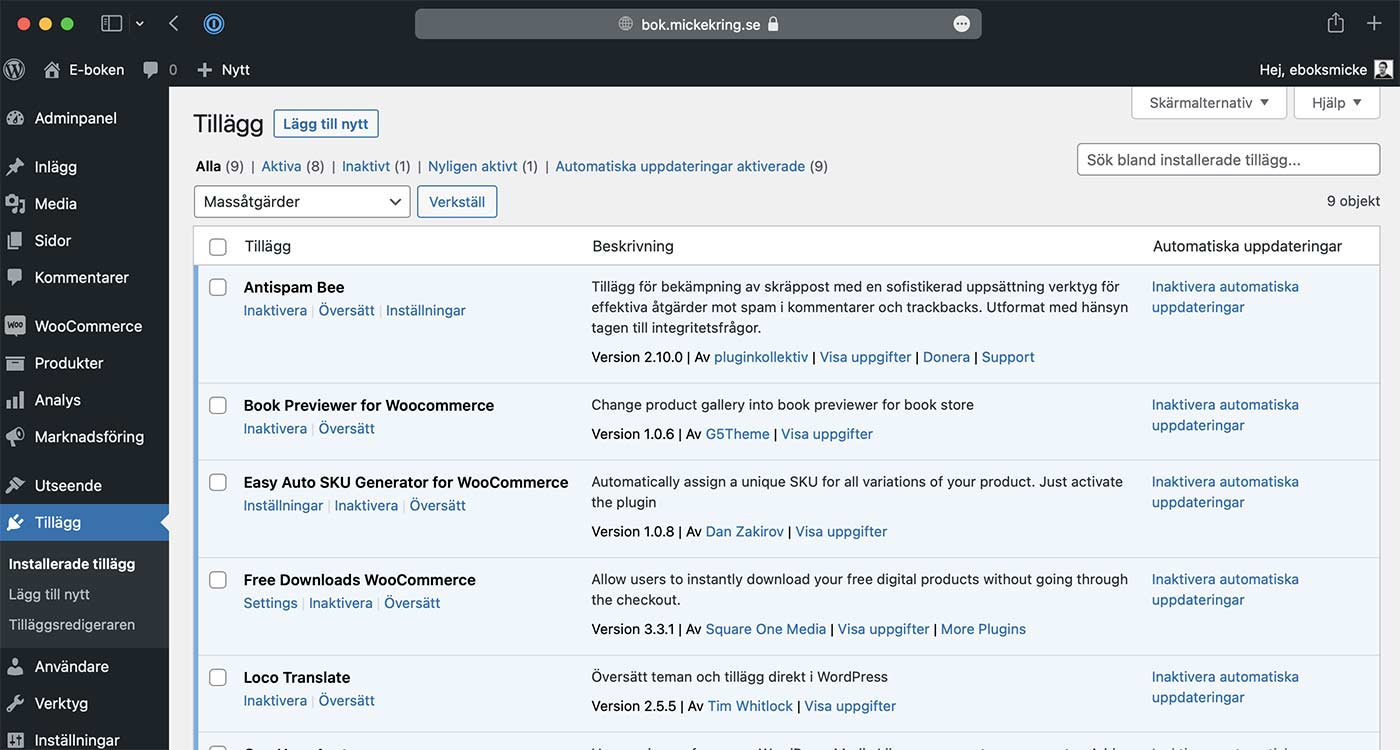
Tools
Antispam Bee | Avoid spam comments with this plugin that follows GDPR.
Price: Free
Loco Translate | With this plugin you can translate themes and plugins that aren’t translated into Swedish.
Price: Free
Cookie Notice & Compliance for GDPR / CCPA | Set up a cookie notice if you have cookies on your site. In this guide we aim for 0 (zero) cookies.
Price: Free
One User Avatar | Use custom profile pictures and turn off Gravatar which fetches resources from third parties.
Price: Free
Post Views Counter | Since we won’t use any analytics tool, we use this plugin to register the number of visits to book pages. It can run without cookies.
Price: Free
WP Add Mime Types - Add epub and ibooks or other file extensions if they’re not allowed to be uploaded to the media library. Add the following for epub and ibooks.
epub = application/epub+zip
ibooks = video/ibooks
3. Settings
The first thing you can do is create a page called “Alla böcker” (All books). We’ll use this as the front page for our “shop,” where all books will be displayed.
WooCommerce
Now we can do some settings in WooCommerce. Go to “Settings” > “Products” in WooCommerce. There choose the page “Alla böcker” as the “Shop base page”. Then you can choose whether to allow “product reviews”. I allow it, but have disabled the ability to give star ratings.
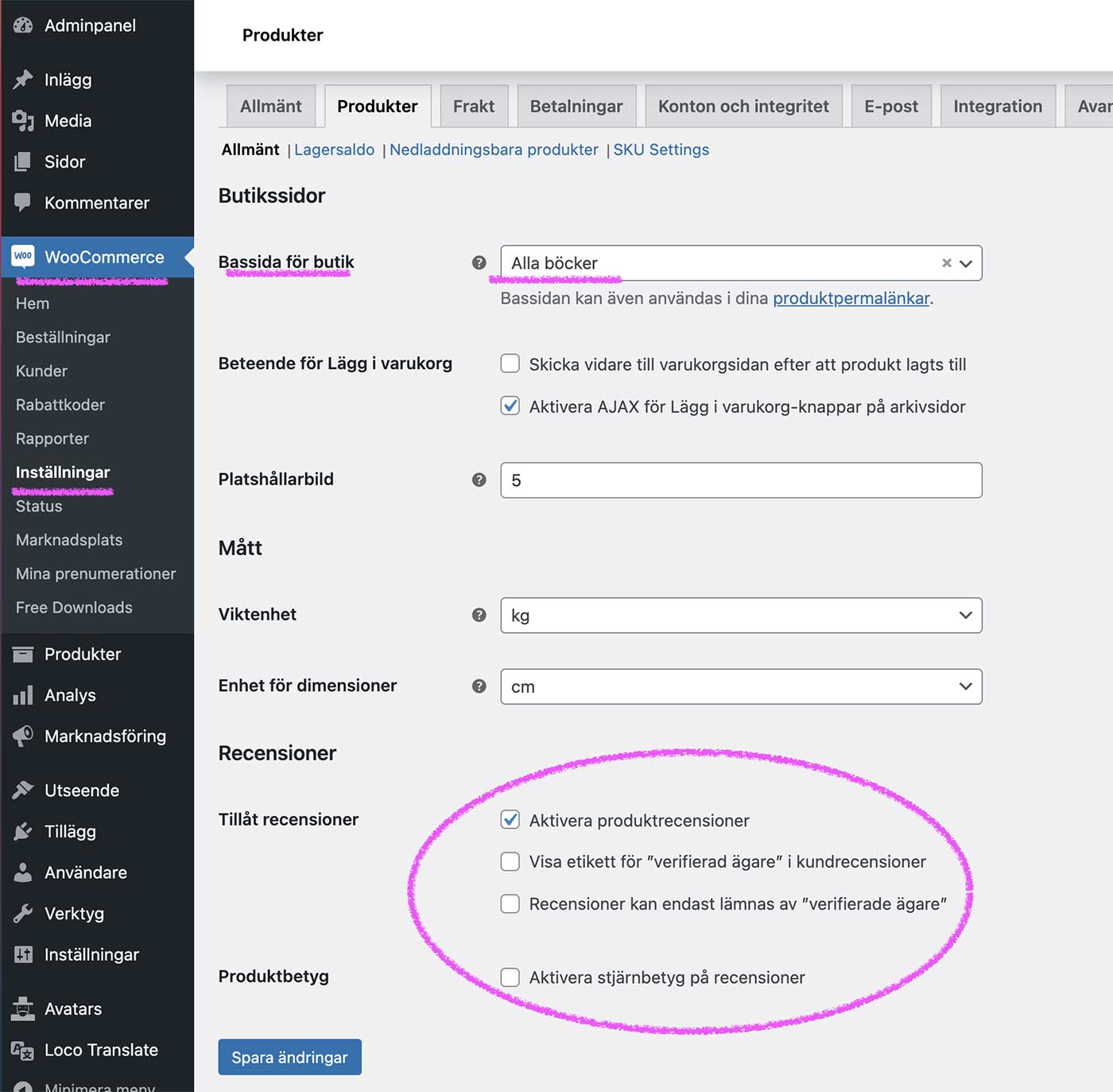
Then jump to “SKU settings” — still under “Products”. This is just about generating a product ID for the book, which doesn’t have any purpose other than making it feel a bit more real. :) You can make whatever settings you want here.
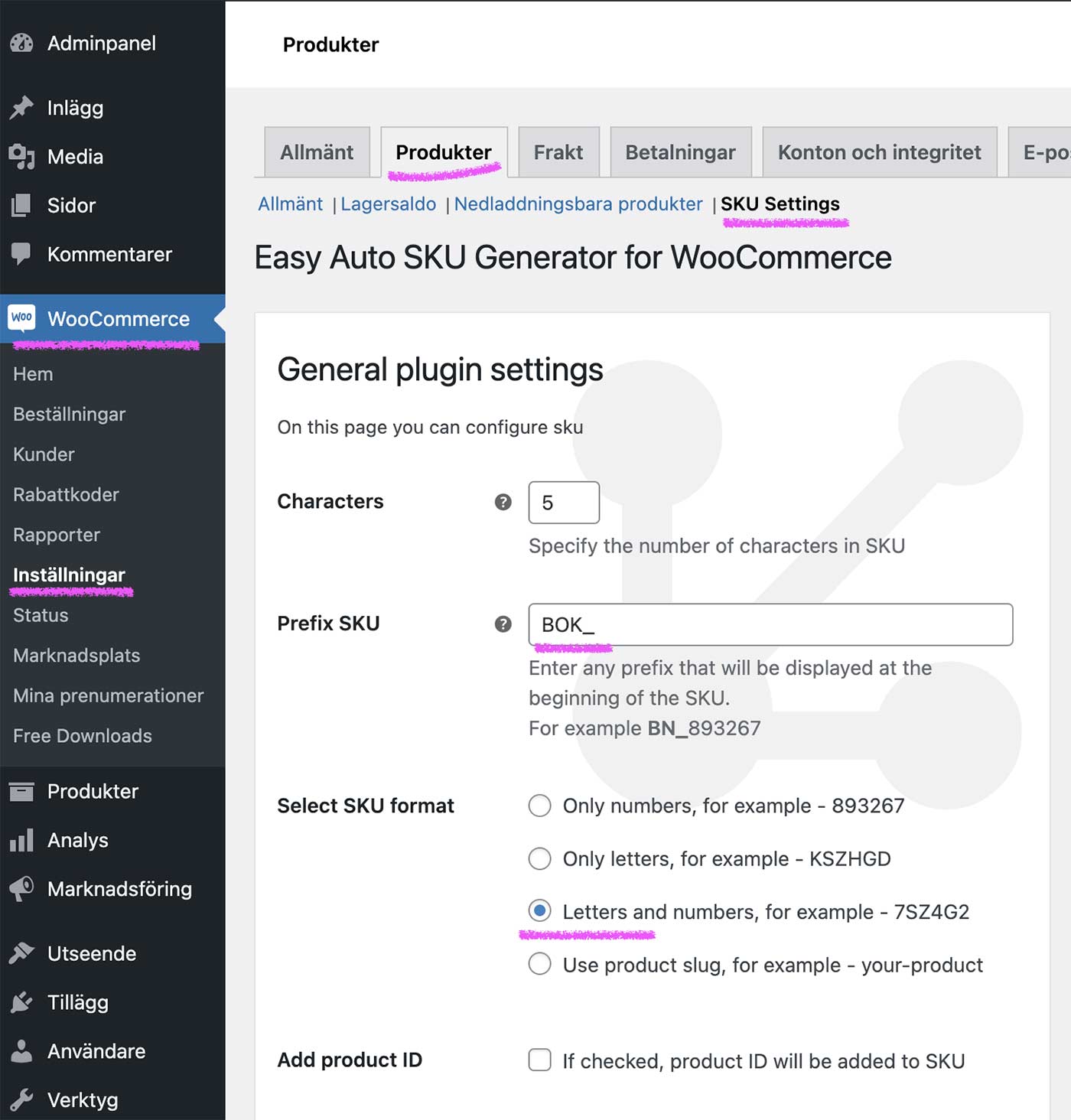
Now we can go to “Brands”, which is what we think of as the authors. Here change the “Slug” to “forfattare”. This is about getting a URL that has “forfattare” in it instead of “brands”. Under “Archive” and “Products” here, you can also choose what of the author is shown and where you want to display this information. For example, I want the author with an image to be shown on the product (book) page.

Now go to “Free Downloads” and to “Settings” > “General” where you can translate the English expressions into Swedish. Then go through the other options and translate and make the settings you want. This is about the buttons for downloading the books that are displayed.
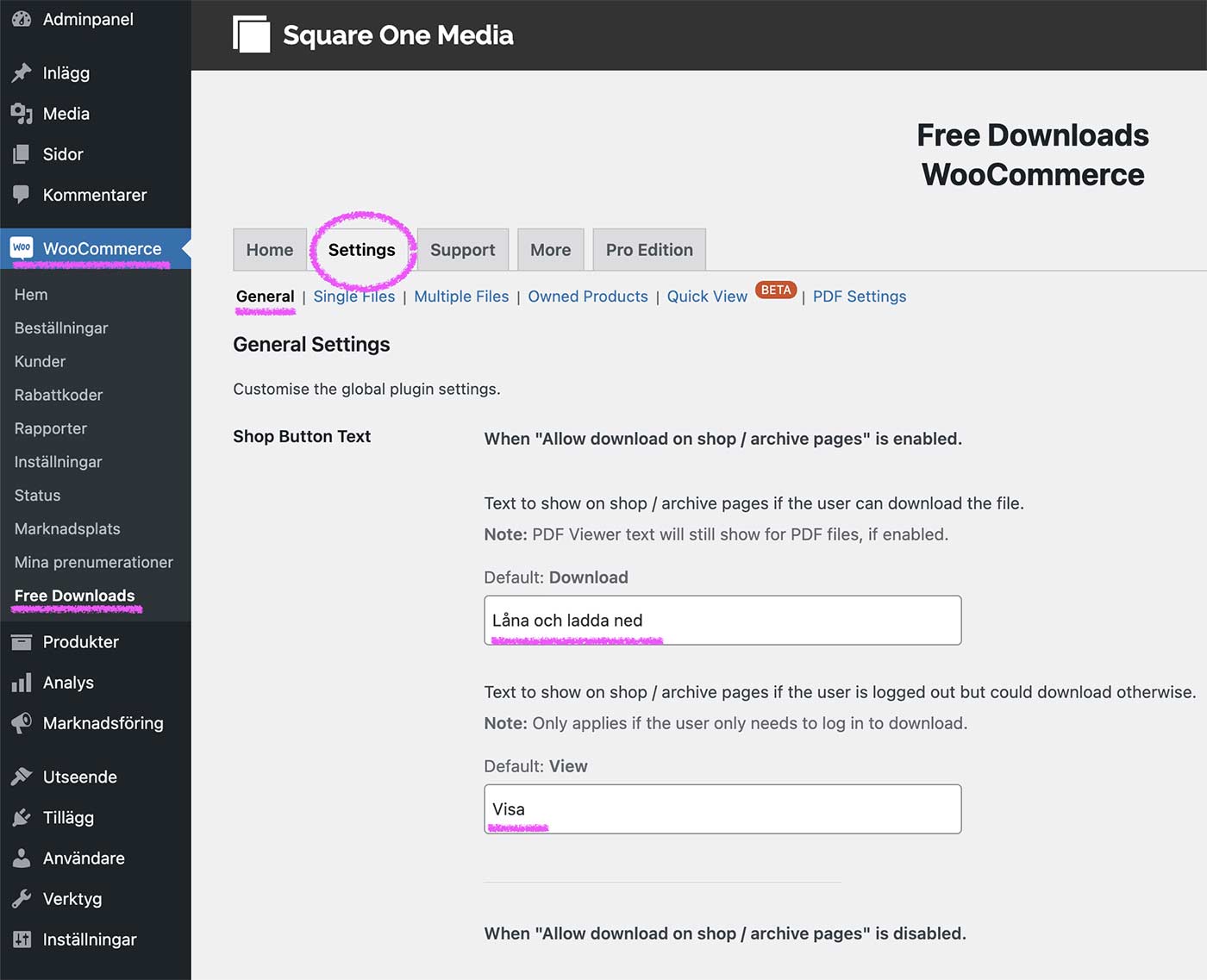
Now we’re getting close so we move on and create attributes that we want to assign to our books. These are attributes that users should be able to use as filters when they’re looking for a book. The attributes I use are: Grade, Audiobook, Published, Language and License.
Create an attribute and then configure the terms for the attribute. For the attribute Årskurs (Grade), the terms become the options we can choose between: Åk 1, Åk 2, Åk 3, Åk 4 and so on. (You can use Grade 1, Grade 2 etc. if you prefer in English.)
Regarding license I’m thinking of different forms of Creative Commons, where the students can choose themselves. A perfect teaching opportunity. :)

Now we create our “Categories”, which are simply the genres we want. Fill in as many as you like.

We can also create our authors under “Brands”. You can also quickly create these when you publish a book and come here later to edit them.

4. Publish your first book
In the video below I show how to publish a book.
5. Appearance - Theme
Your e-library doesn’t look like much at this point, so either try to find a free theme that supports WooCommerce, or buy a nice theme for a few hundred SEK. On Bibblis I use a theme called Dukaken and you can find it here on Themeforest.
It costs around $60, although it’s currently reduced to $19. On Bookis I use a theme called Flatsome. That one is also around $60 and you can find it here on Themeforest. Now that you’ve chosen your theme, just get started designing. Most professional themes look good out of the box, but there’s always a lot to fix. In the video below you can see a bit of how Bibblis looks when I surf around.
6. Other settings
This guide covers the basics of getting your own e-library up and running. There are of course other settings you’ll need to handle yourself. It could be cache, 2FA, security, cookies, self-hosted fonts if you don’t want to use Google web fonts, SEO and more. I’ve left that out of this guide because it would become too long and those are things someone used to setting up WordPress already knows.
7. GDPR
A few tips regarding GDPR and personal data: have a plan for when you prune books, authors and images. Or if you don’t. Make sure you get consent from guardians before uploading material. If you don’t want authors to be named, make sure students don’t put their names in the books either.
Good luck!
…and get in touch if you have any questions. Please use the comments field so others can benefit from your queries.