TweetPhone - yet another fun project
 Micke Kring
·
·
3 min read
Micke Kring
·
·
3 min read
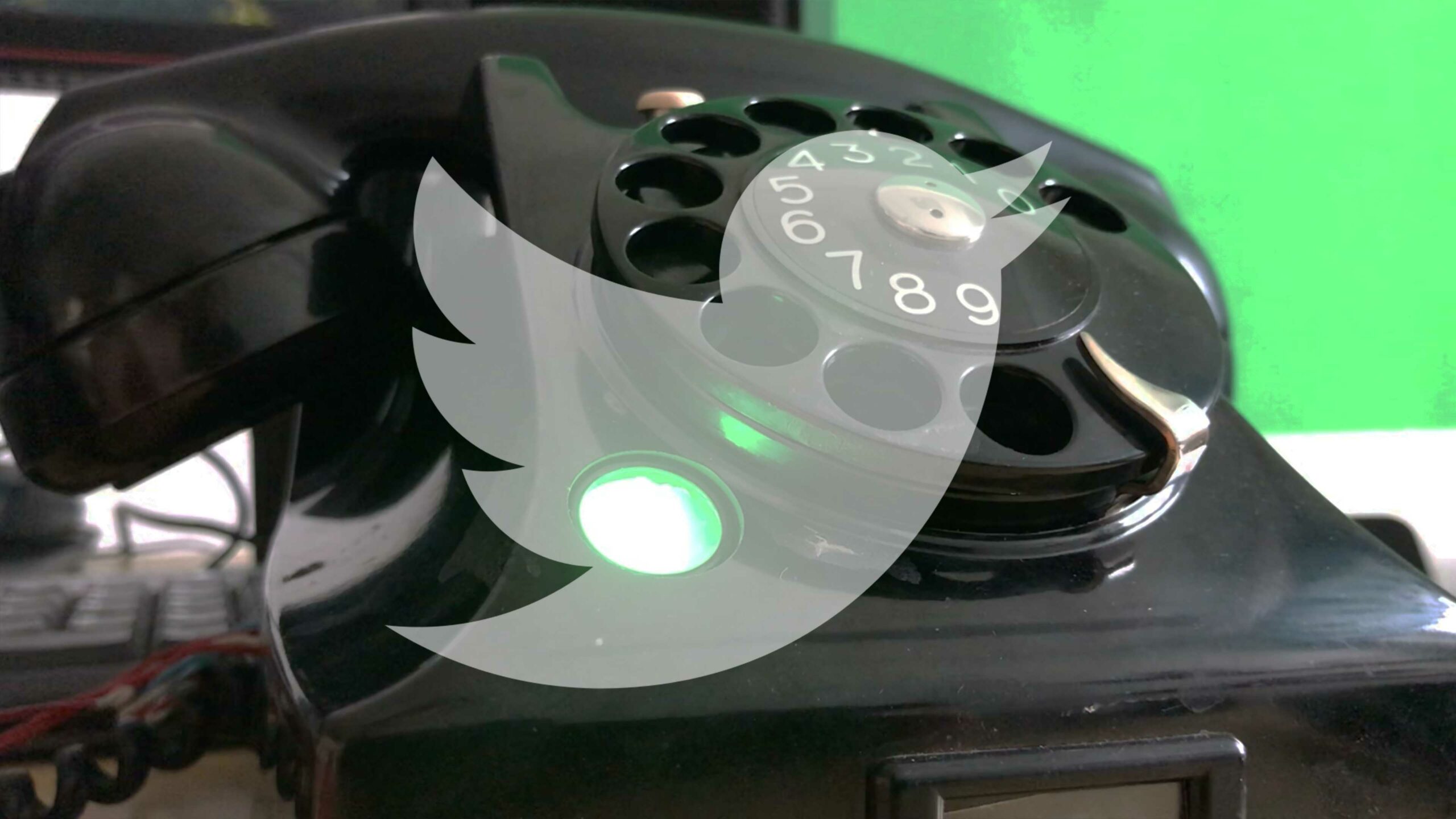
One day an old bakelite LM Ericsson telephone was standing outside my room. Since I’m always looking for small projects to work on to sharpen my skills in different areas, I figured I might as well take care of it. It’s always fun to mix old and new technology — and since there’s a ringer in the phone, it should be put to use again. To ring when I get new tweets. And since there’s a handset, the messages will be read aloud in the phone when I pick up the handset.
So now there’s a “twitter-app” for the very analogue LM Ericsson bakelite telephone. :)
In this project I’ve kept working with Python as the language, Tweepy to communicate with Twitter via the API, TinyDB to store message IDs in a database, and gTTS (Google Text-To-Speech) to convert the tweets from text to spoken audio. Nothing advanced, but a fun project and some problem solving. All the code is on GitHub at github.com/mickekring/Tweetofone
1. Check that everything works
The only things I’ll use in the phone itself are the ringer and the speaker. In some distant future I might try using the microphone and implement some voice control.
2. Base code - Twitter > MP3
After that it was time to get into the code. Simply put, there’s a function that reads my timeline and looks for mentions to me. If new messages are found they’re added to a list and the message IDs are saved to a database so the program remembers which messages have already been seen. Then the next function takes over, which sends the new messages from the list to Google’s text-to-speech where they’re converted to spoken audio and saved locally as MP3s. Finally, these MP3s are played.
3. Finish the hardware
After clearing out old junk and removing a lot of cables and old scary capacitors and other bits, it was just a matter of soldering together what was needed. Headphone jack as well as an LED and the “switch” that detects whether the handset is on or off.
4. Raspberry Pi - Python - Phone > GO!!!
And that was that. I’m definitely going to go crazy because of this sound, which has already scared me a few times. Of course a DND button (Do Not Disturb) should have been implemented, which I was on my way to doing, but oh well… Now you know how to get my attention at work anyway. :) Code is in the link at the top of the post.
Do you have suggestions for improvements or any ideas? Please comment!